
CNAME records are referred to as alias records since they map an alias to its canonical name. You can add a CNAME Record using the cPanel’s Zone Editor option.
1. Log in to your cPanel account.
2. In the Domains section, click on Zone Editor.

3. Under Domains, you can see many options below Actions.
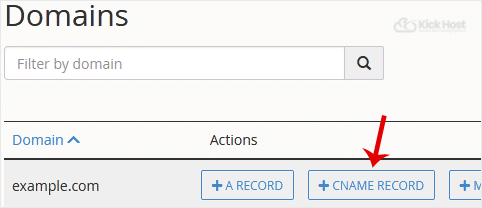
4. Click on CNAME Record, and a popup box will open. Please, enter the required details in it.
Name: Enter the name you wish to add, such as www, and the cPanel will automatically add a domain name like www.example.com.
CNAME: Enter the domain name.
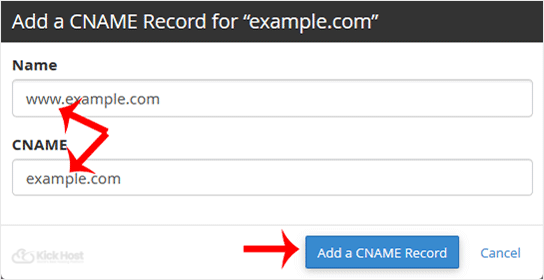
5. Now, click on Add a CNAME Record.
If the record is added successfully, you will see a success message.
Note: It may take anywhere from 12 to 24 hours for the changes to take effect worldwide.
Found this useful? Share it.